If you noticed the DatePicker control when it is run , you might see the Missing Icons in the ApplicationBar when selecting the Date .

How to get the right ApplicationBar Icons in DatePicker in Windows Phone ?
You can add the icons by following the below steps
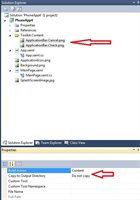
1. You should add the OK / Cancel Icon by adding the icons in your project with the folder named “Toolkit.Content” and mark the action as “Content”.
You can find the Icons in the following path
C:Program Files (x86)Microsoft SDKsWindows Phonev7.1ToolkitAug11BinIcons
The Icons Name should be ApplicationBar.Cancel.png and ApplicationBar.Check.png
2. Now run the Windows Phone App and tap the Textbox , you should see the OK and cancel Icon …